Xpra Documentation
Audio
Unless you disable audio forwarding, you can start and stop it from the system tray at any time.
The client and server will negotiate which codec to use. The most widely tested and supported codecs are opus, vorbis, flac and mp3.
Unlike screen updates which are sent as discrete events, audio compression processes the operating system’s audio stream and so this is a continuous process which will take up a little bit of CPU and bandwidth.
If you want to turn off speaker forwarding, use the option speaker=off in your system-wide xpra.conf (to disable it globally) or in the per-user configuration file, or on the command line
Screenshots
-
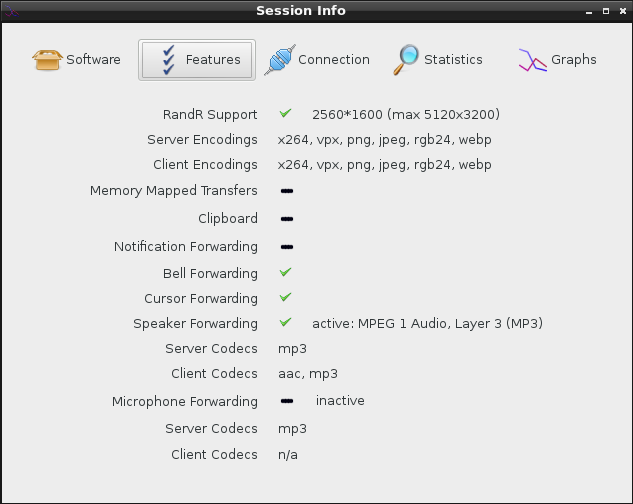
Audio information displayed on session info (with speaker enabled and running and microphone disabled):
-
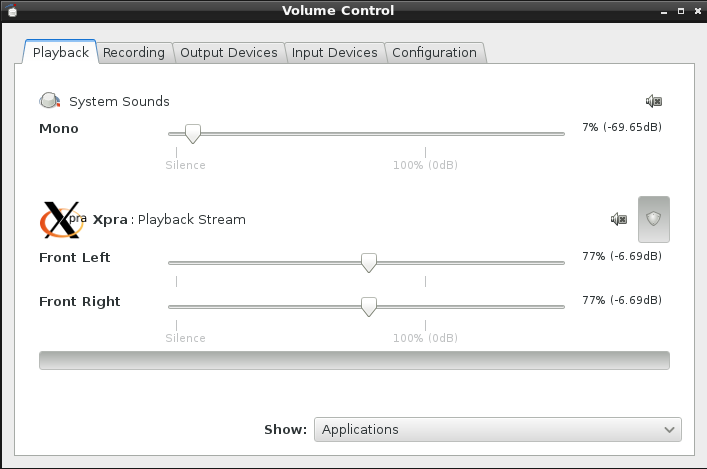
A Linux client’s pavucontrol showing the Xpra application connected to the local pulseaudio server:
-
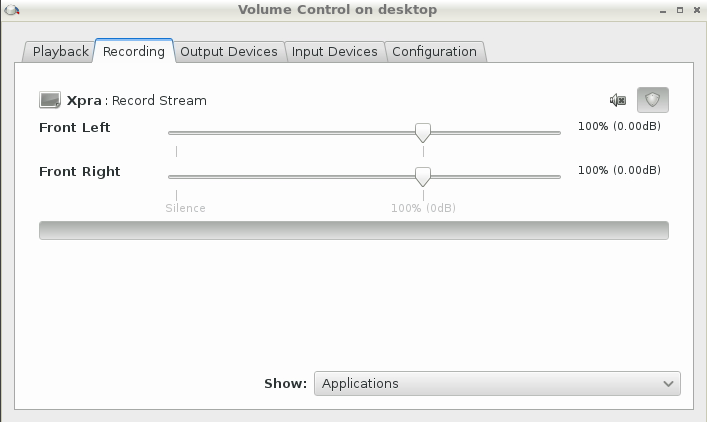
pavucontrol running within the xpra session (“on the server”), showing xpra recording the session’s audio:
Checking the state of the audio forwarding
Both ends run the capture and playback pipelines in a separate process, and both report what they are doing.
The Connection tab of the client’s session info dialog has a Speaker and a
Microphone row: the label shows the state (disabled, inactive, active: opus, …)
and the tooltip shows, for the client and the server, the role of the process
(audio capture or audio playback), its pid, the GStreamer pipeline
and the command line the subprocess was started with.
The same information is available from the command line with xpra info:
xpra info tcp://localhost:10000 | grep audio
The server-wide audio.* keys describe what the session supports:
| Key | Meaning |
|---|---|
audio.initialized |
whether the GStreamer query has completed |
audio.speaker.supported |
whether speaker forwarding can be started at all |
audio.speaker.codecs |
the codecs the server is willing to encode to |
audio.source-plugin |
the capture plugin (--audio-source), auto when unspecified |
audio.meter.* |
the state of the session-wide PulseAudio level meter |
The per-connection client.<n>.audio.speaker.* and client.<n>.audio.microphone.* keys
describe the streams that are actually running:
| Key | Meaning |
|---|---|
active |
True only while the stream is being forwarded |
state |
disabled, inactive, starting, active, error, or blocked (audio loop) |
description |
audio capture on the sending side, audio playback on the receiving side |
command |
the command line used to start the capture / playback subprocess |
pipeline |
the GStreamer pipeline that subprocess is running |
pid, codec, codec_description, bitrate, bytes |
stream details |
For more verbose output, add -d audio to the server (or client) command line.
Options
For low level implementation details, see audio subsystem.
Main options
The main controls can be specified in the configuration file or on the command line, and they are documented in the manual:
speaker=on|off|disabled/microphone=on|off|disabled: audio input and output forwarding control: on will start the forwarding as soon as the connection is established, off will require the user to enable it via the menu, disabled will prevent it from being used and the menu entry will be disabledspeaker-codec=CODEC/microphone-codec=CODEC: Specify the codec(s) to use for audio output (speaker) or input (microphone). This parameter can be specified multiple times and the order in which the codecs are specified defines the preferred cod ec order. Use the special valuehelpto get a list of options. When unspecified, all the available codecs are allowed and the first one is used.audio-source=PLUGIN[:OPTIONS]: Specifies the GStreamer audio plugin used for capturing the audio stream. This affects “speaker forwarding” on the server, and “microphone” forwarding on the client. To get a list of options use the special value h elp. It is also possible to specify plugin options using the form ` “–audio-source=SOURCE:name1=value1,name2=value2,etc”, ie:”–audio-source=pulse:device=device.alsa_input.pci-0000_00_14.2.analog-stereo”`audio-sink=SINK[:DEVICE|OPTIONS]: Specifies the client-side GStreamer audio sink used for speaker playback. The defaultautoselects the platform’s default sink. A device can be selected with--audio-sink=pulsesink:device-name, or sink attributes can be specified with--audio-sink=pulsesink:name1=value1,name2=value2.
Advanced options
Other options are only available through environment variables for fine-tuning - which should rarely be needed:
XPRA_PULSEAUDIO_DEVICE_NAMEto use a specific device if there is more than one device to choose from (can happen when using an existing pulseaudio server with more than one output device attached)XPRA_AUDIO_QUEUE_TIMEcan be used to control the default amount of buffering by the receiverXPRA_AUDIO_GRACE_PERIOD(defaults to2000, in milliseconds) errors will be ignored during this grace period after starting audio forwarding, to allow the audio forwarding buffer to settle downXPRA_AUDIO_SINK: the default sink to use (normally auto-detected)XPRA_WASAPI_LOOPBACK(defaults to1): on MS Windows servers, speaker forwarding captures the output device in loopback mode - which is the equivalent of a pulseaudio “monitor” device. Set it to0for GStreamer versions older than 1.20, which do not have theloopbackproperty onwasapi2src