Xpra Documentation
Keyboard
Keyboard handling is an area that is constantly seeing improvements and bug fixes. That’s because each platform does things slightly differently and xpra has to somehow convert this data into meaningful keyboard events on the remote end.
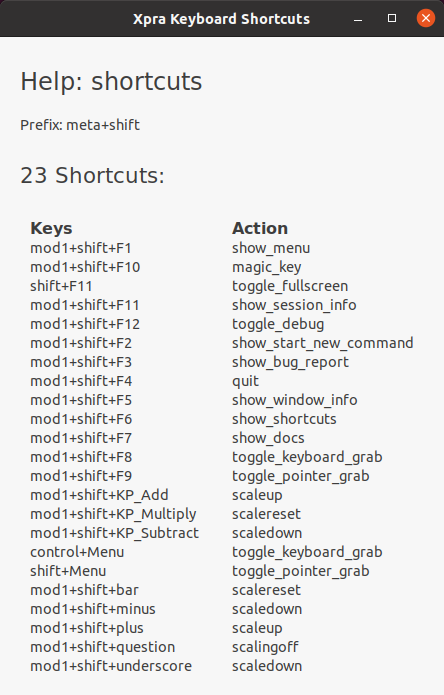
Xpra Keyboard Shortcuts
Xpra utilizes keyboard shortcuts to facilitate quick access to its features.
How to Find Keyboard Shortcuts in Xpra
- Via the Tray Icon: Right-click on the Tray Icon, select
Keyboard, thenView Shortcuts. - Shortcut Key: Press
#+F6directly to bring up the Xpra Keyboard Shortcuts window.
For historical reference, an older list of keyboard shortcuts exists in #1657.
Dismissing stuck popups
Press Control+Escape to release the client’s keyboard and pointer grabs and
dismiss popup windows. This shortcut is handled locally before the key is sent
to the remote application. It can be rebound with
--key-shortcut=Control+Escape:_ --key-shortcut=Control+Shift+Escape:dismiss_popups.
Dismissing remote popups requires an X11 seamless server advertising
window.dismiss. The server unmaps override-redirect windows, including menus
and tooltips. It leaves regular windows and tray icons alone. Readonly clients
only release their local grabs, as do clients connected to older servers.
An application does not have to cooperate: X11 automatically releases pointer
and keyboard grabs when their grab window becomes unviewable. Calling
XUngrabPointer or XUngrabKeyboard from Xpra only releases Xpra’s own grabs.
See the Xlib grab documentation.
A grab held on a different window, or an application that continually remaps and
grabs again, may require closing the application.
# in Xpra Key Bindings
The # symbol represents one or more modifier keys (like Control or Alt+Shift) in Xpra key bindings.
The exact key # stands for varies by platform and can be overriden in configuration.
In the Xpra Keyboard Shortcuts window, the # placeholder is named as “Prefix:”:
Common Issues
- When connecting over high latency links, use the
--no-keyboard-syncoption to prevent keys from repeating. This toggle is also accessible from the system tray menu. (this switch may cause other problems though) - US layout and most common layouts should work OK
- MS Windows shadow servers type the character of each key using the layout of the window receiving it, so the client layout decides which character is typed. Characters this layout cannot type are injected as unicode, which some applications ignore (ie: games and virtual machines). Set
XPRA_WIN32_KEYS_BY_CHARACTER=0on the server to map the keys by name instead, so that the MS Windows layout decides the character. - If starting xpra from an environment which has non-standard input methods, this can interfere, see #286
- Input methods don’t work by default: #634
- Supporting multiple layouts and switching layouts reliably and/or manually: #230, #166, #86, #1607, #1665, #1380
- Multiple keys / meta: #668, #759
- Input grabs: #139
Debugging
Keyboard events are interpreted on the client and mapped again on the server, so diagnostics from both ends are often needed.
Xpra diagnostics
The Keyboard event viewer in xpra toolbox shows the detected model,
layout, variant and options, then reports layout changes, modifiers, keycodes,
keysyms and XKB groups in real time. It can also be opened directly:
xpra example view-keyboard
To print the detected keyboard configuration and, on X11, the complete keysym map, use:
xpra keyboard -v
Enable keyboard debug logging on the client and server with -d keyboard:
xpra attach :DISPLAY -d keyboard
xpra seamless :DISPLAY -d keyboard --start=xterm
For an already-running session, logging can be enabled at runtime on the server and on its connected clients:
xpra control :DISPLAY debug enable keyboard
xpra control :DISPLAY client debug enable keyboard
See Logging for log locations and more ways to control debug categories.
To capture the keymap that a client would send and test whether an X11 server can generate all of its keys, use:
xpra keymap keymap.json
xpra keymap-test keymap.json
keymap-test uses a temporary X11 display by default. Passing an explicit
display tests that display but modifies its keymap for the duration of the test.
Individual keysyms can be checked by adding their names to the command, for
example xpra keymap-test keymap.json Alt_R ISO_Level3_Shift.
For detailed server-side mapping logs concerning only specific keysyms, set
XPRA_DEBUG_KEYSYMS before starting the server and enable keyboard logging:
XPRA_DEBUG_KEYSYMS=Alt_R,ISO_Level3_Shift \
  xpra seamless :DISPLAY -d keyboard --start=xterm
X11 tools
These utilities help identify which layer is producing an incorrect result:
- xkeycaps displays the current X11 keyboard mapping graphically and highlights key activity.
- xkbwatch
displays real-time XKB modifier, lock, latch and active group state. The
active group distinguishes layouts such as
usandde. - Screenkey displays interpreted keystrokes as an on-screen overlay.
-
xkbprint creates a static, layout-aware drawing of the current XKB keyboard description:
xkbprint -label name "$DISPLAY" keyboard.ps - xev reports keycodes, keysyms and modifier state for events delivered to its window.
Compare the output from setxkbmap and xmodmap on the client desktop and inside the Xpra session:
setxkbmap -print
setxkbmap -query
xmodmap -pke
xmodmap -pm
This comparison shows whether the discrepancy originates in the client keymap, the keymap installed in the session, or Xpra’s event translation.
Reporting Bugs
First, please check for existing issues that may match your problem. Failing that, make sure to read the reporting bugs guidelines, and generally you will need to include (only those that apply):
- results from the relevant diagnostics above
- active keyboard layout(s)
- input methods
- keyboard related configuration setup/files
- keyboard type
- client and server log output with the
-d keyboarddebugging switch - whether the bug is also present with / without the
--no-keyboard-syncswitch - X11 systems:
setxkbmap -printandsetxkbmap -query(both directly in the client if it supports those commands and in the Xpra session)xmodmap -pkeandxmodmap -pm(again on both)xkbprint -label name $DISPLAY
- MS Windows:
Keymap_info.exe - if the problem is affecting specific keys, you may want to use the environment variable
XPRA_DEBUG_KEYSYMS=keyname1,keyname2on the server to log the keyboard mapping process for those keys - X11 servers:
xevoutput of the misbehaving key events