Xpra Documentation
Windows Subsystem for Linux (WSL)
Start a session
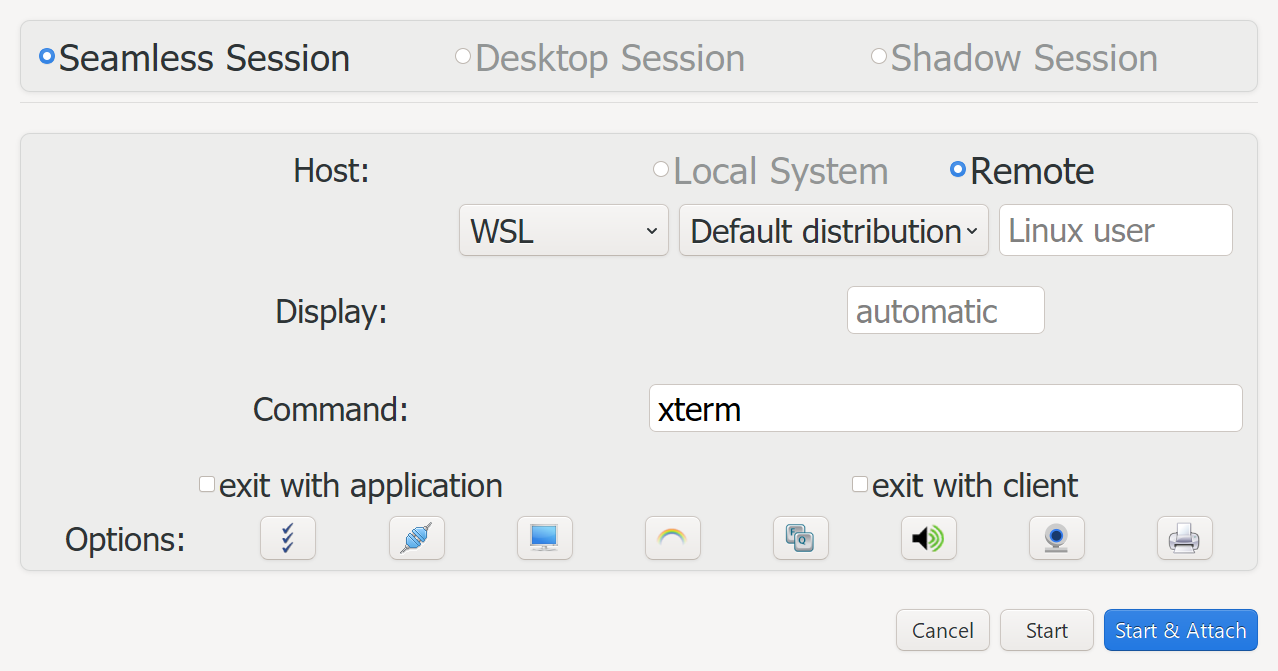
Use Start with the Remote host and the WSL mode to start an application
in a new session, or in one that is already running.
Connect to a session
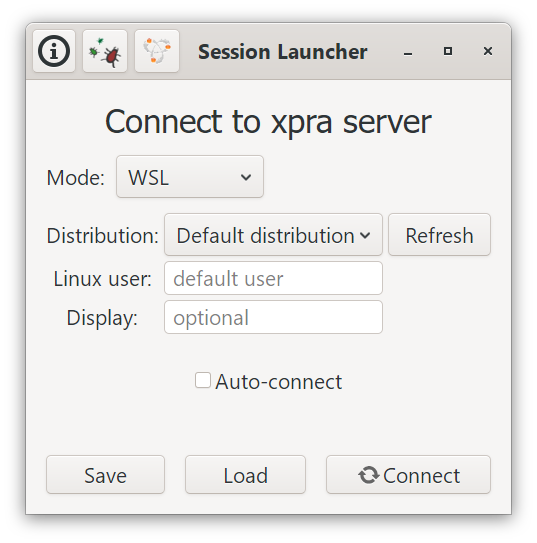
Use Connect in WSL mode to re-attach to a session that is already running.
See the graphical interface below for details.
This page covers running an Xpra server in a Linux distribution hosted by WSL and connecting to it from Windows. This is useful when applications should keep running after their client disconnects, or when the Linux session is to be used from another Xpra client.
It is not necessary to use Xpra just to show a Linux graphical application on Windows. On supported Windows 11 systems, WSLg can display Linux GUI applications directly in Windows. Xpra adds its usual persistent sessions, seamless windows, and remote-access features on top of that.
Prerequisites
Use a current WSL 2 installation and a supported Linux distribution. From an elevated PowerShell prompt, a new installation can normally be created with:
wsl --install
Use wsl --update to update an existing installation and wsl -l -v to check
that the distribution uses version 2. Microsoft’s WSL installation
guide has the current
requirements and installation alternatives.
WSLg is included with current WSL on Windows 11. It provides the Wayland and X11 display services used by Linux GUI applications, as well as audio and clipboard integration. The WSLg architecture overview explains how those pieces fit together.
Install Xpra
Install the official Xpra packages in the WSL distribution. The default Debian and Ubuntu repositories provide outdated or broken downstream packages that do not work with current Xpra clients; see Distribution Packages. Run the automatic setup script inside the WSL distribution to configure the official repository and install Xpra:
curl https://xpra.org/get-xpra.sh | bash
For manual repository setup, see Download Xpra.
Install the native Windows Xpra client as well. The packaged EXE or MSI
installer is required for Windows integration; see the client
documentation.
Start and connect to a session
The Windows client can reach a WSL distribution directly, using wsl:// connections:
wsl.exe runs Xpra in the distribution and the Xpra protocol is carried over its pipes.
There is no TCP port to bind, no password to choose and no SSH server to install.
From the graphical interface
- Start Session: select the
Remotehost and theWSLmode, pick a distribution (or leave the default one), optionally enter a Linux user and a display number - leave it empty to use the first free one from100, enter the command to run and clickStart & Attach. Using the display number of a session that is already running starts the command in that session. Only seamless sessions are available for WSL at the moment. - Session Launcher (
Connect): choose theWSLmode, then the same distribution, user and display number to re-attach to a session that is already running. The display number can be left empty when only one session is running. These settings are kept when saving the session to a.xprafile.
The list of distributions is obtained from wsl --list --quiet.
Before connecting, the client verifies that xpra can be found in the
distribution and shows installation instructions if it cannot.
From the command line
# start xterm in a new session on display 100 of the "Ubuntu" distribution:
Xpra_cmd.exe start wsl://Ubuntu/100 --start=xterm
# or let Xpra choose a free display number, starting at 100:
Xpra_cmd.exe start wsl://Ubuntu/ --start=xterm
# start another application in the session that is already running:
Xpra_cmd.exe start wsl://Ubuntu/100 --start=xclock
# re-attach to it later:
Xpra_cmd.exe attach wsl://Ubuntu/100
# the display number can be omitted when only one session is running:
Xpra_cmd.exe attach wsl://Ubuntu/
# as a specific Linux user:
Xpra_cmd.exe attach wsl://alice@Ubuntu/
# using WSL's default distribution, and its only session:
Xpra_cmd.exe attach wsl://
If a command cannot be started in a session that is already running,
a warning is shown and the client still connects to the session.
When attaching without a display number and more than one session is running,
the error lists them and one must be specified.
Run xpra list in the distribution to see the sessions and their display numbers.
The distribution name is case-sensitive, names containing special characters
can be URL-encoded (ie: wsl://My%20Distro/100). When the distribution or
the user is omitted, WSL’s configured default is used. Passwords and ports
are not accepted in wsl:// addresses.
Xpra_cmd.exe is preferable while testing because it prints diagnostics;
add -d wsl for details about the wsl.exe process.
Session lifetime
Closing or disconnecting the client terminates its wsl.exe process, but the
Xpra server keeps running in the distribution, so applications are still there
when re-attaching.
WSL stops a distribution shortly after its last wsl.exe process has exited,
whatever is still running in it, which would terminate the sessions.
To prevent this, the client leaves a hidden wsl.exe process running after
disconnecting: it keeps the distribution running for as long as the Linux user
has Xpra servers in it, and exits once the last one has stopped.
There is only one of these per distribution and user, however many sessions
and connections there are.
It can be turned off for a connection with wsl://Ubuntu/100?keepalive=no,
or for all connections by setting the environment variable XPRA_WSL_KEEPALIVE=0,
the distribution then stops - and the sessions with it - about 25 seconds
after disconnecting.
The sessions do not survive wsl --shutdown or a Windows restart. See the
.wslconfig documentation
for WSL’s own idle settings.
Using TCP instead
TCP connections are still useful for connecting other clients, ie: the HTML5 client. Bind Xpra only to WSL’s loopback interface. This uses WSL’s localhost forwarding and avoids exposing an unencrypted Xpra TCP listener to the network.
In WSL, start a session and an application (replace xterm with an installed
application if necessary):
XPRA_PASSWORD='choose-a-secret' xpra start :100 --bind-tcp=127.0.0.1:14500,auth=env --start=xterm
From PowerShell, set the same password for the client and attach to the session:
$env:XPRA_PASSWORD = 'choose-a-secret'
Xpra_cmd.exe attach tcp://127.0.0.1:14500
Do not bind to 0.0.0.0 or a LAN address without configuring suitable
authentication and transport security. For access from another computer,
prefer an SSH connection or TLS and follow the authentication
and security guidance.
systemd (optional)
systemd is only needed when Xpra or a related service should be managed as a
system service. Current WSL distributions may already enable it. To enable it
for a WSL 2 distribution, add the following to /etc/wsl.conf:
[boot]
systemd=true
Then run wsl --shutdown from PowerShell and start the distribution again.
Microsoft’s systemd in WSL documentation
has the version requirements and troubleshooting details. Do not use the old
third-party scripts that replaced WSL’s init process.
OpenGL and WSLg
WSLg can provide GPU-accelerated OpenGL to applications running on its display.
This is distinct from client-side OpenGL rendering. Driver
availability and supported APIs depend on the Windows GPU driver, WSL version,
and hardware. To inspect the renderer in the distribution, install its
mesa-utils (or equivalent) package and run:
glxinfo -B
See server OpenGL acceleration for Xpra display choices and their limitations. In particular, a normal virtual Xpra display generally uses software rendering; using an existing WSLg display is a separate setup with different lifecycle and isolation trade-offs.
Historical Lenovo laptop setup
The following notes record the specific machine on which this was originally tested. They are not general WSL or Xpra installation instructions.
The machine was a Lenovo laptop with an NVIDIA GeForce RTX 3070 Laptop GPU.
After a clean Windows 11 installation, Windows Update, the NVIDIA WSL-capable
driver, and Lenovo Vantage updates were installed. WSL was then installed with
an Ubuntu 20.04 distribution, followed by mesa-utils and gedit; the latter
appeared to pull in additional Mesa packages needed by this particular test.
The resulting glxinfo -B reported direct rendering through D3D12 and the
NVIDIA GPU:
OpenGL vendor string: Microsoft Corporation
OpenGL renderer string: D3D12 (NVIDIA GeForce RTX 3070 Laptop GPU)
OpenGL core profile version string: 3.3 (Core Profile) Mesa 21.0.3
OpenGL version string: 3.1 Mesa 21.0.3
OpenGL ES profile version string: OpenGL ES 3.0 Mesa 21.0.3