Xpra Documentation
Networking
Xpra can connect through local sockets or a range of network transports. Start with SSH for a straightforward encrypted connection, or choose another transport when you need browser access, lower latency, or compatibility with other remote-desktop clients.
Choose a connection type
The bind option creates a server endpoint. Clients connect using the matching
URL scheme, such as ssh://, ssl://, or quic://.
SSH
Use --bind-ssh on any platform. SSH provides host verification,
authentication, and encryption, and is the usual choice for connecting across
a network.
Local Unix domain sockets can also be reached through an existing SSH server.
TLS, QUIC, and secure WebSocket
These encrypted transports are available on all platforms:
--bind-sslcreates a TLS endpoint--bind-quiccreates a QUIC endpoint--bind-wsscreates a secure WebSocket endpoint
QUIC should offer the lowest latency and handles packet loss well, though it may need some tuning.
TCP and WebSocket
Use --bind-tcp or --bind-ws on any platform. Plain TCP and WebSocket
connections are not encrypted; protect them with AES, place them
behind a secure proxy, or use an encrypted transport instead.
A TCP endpoint can also serve the HTML5 client and automatically recognize WebSocket connections.
Local and virtual-machine connections
--bindcreates Unix domain sockets on POSIX systems--bindcreates a named pipe on Windows--bind-vsockconnects Linux hosts and guest virtual machines; see #983wsl://connects Windows clients to sessions in a WSL distribution, without any listening socket; see WSL
The default --bind=auto also creates
abstract sockets on supported
systems. Use --bind=noabstract to disable them.
RFB / VNC and RDP compatibility
--bind-rfb allows VNC clients to connect to
desktop, monitor, and shadow
servers. Xpra can also connect to a VNC server using a vnc:// URL.
--bind-rdp is available for the same server types, but only the connection
handshake is implemented so far; follow #4476
for progress.
How endpoints behave
One listening port can support several clients and protocols.
Automatic protocol upgrades
A TCP socket can recognize and upgrade WebSocket, secure WebSocket, TLS, SSH, RFB, and RDP connections. Including plain TCP, one port can therefore support seven protocols automatically.
This makes it possible to serve native Xpra clients, compatible remote-desktop clients, and the HTML5 client from the same address. See the protocol reference for details of Xpra’s application-level messages.
Discovery and security
Network-accessible sockets are normally published through
multicast DNS. This excludes vsock and Windows named
pipes; POSIX Unix domain sockets are advertised as SSH connections when a local
SSH server is available.
Before exposing an endpoint, configure authentication, encryption, and review the security guidance.
Connection examples
The examples below expose port 10000. Check the firewall and security policy
on the server before making a port reachable from other machines.
TCP upgraded to WebSocket
Start a seamless session with a TCP listener:
xpra seamless --start=xterm --bind-tcp=0.0.0.0:10000
Connect using WebSocket:
xpra attach ws://localhost:10000/
Open the same address in a browser to use the HTML5 client:
xdg-open http://localhost:10000/
SSH with a password file
Create the password file and start an SSH listener with file authentication:
echo -n thepassword > password.txt
xpra seamless --start=xterm \
    --bind-ssh=0.0.0.0:10000,auth=file(filename=password.txt)
Then attach to it:
xpra attach ssh://localhost:10000/
The client prompts for the password stored in password.txt, not the regular
shell account password.
Network performance
Xpra adapts picture delivery to the connection, but network configuration and queueing still have a large effect on responsiveness.
Bandwidth adaptation
Xpra tries to detect the network adapter and connection characteristics, and
adapts when capacity changes. If detection is inaccurate, disable
bandwidth-detection and set an explicit bandwidth-limit.
Latency and queueing
Bufferbloat can cause severe performance degradation because Xpra is sensitive to jitter and latency. The Bufferbloat project explains practical ways to reduce it.
For background, see You Don’t Know Jack About Bandwidth, A little bump in the wire that makes your Internet faster, the bufferbloat FAQ, and Queueing in the Linux Network Stack.
Monitor a live session
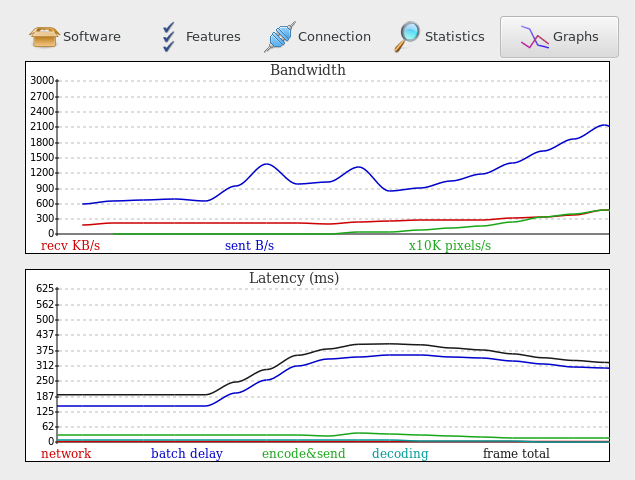
The Graphs tab in the Session Info dialog shows bandwidth use and
picture latency. More network measurements are available elsewhere in that
dialog and from the xpra info command.
Diagnose network problems
Measure the connection as the application experiences it, then compare that with simpler network tests to locate latency outside Xpra.
Establish a direct baseline
Tunnels, VPNs, proxies, and firewalls can add latency or alter traffic. Test a direct connection first, then reintroduce each layer. Prefer plain TCP while diagnosing because comparing it with WebSocket, TLS, or QUIC helps isolate the transport layer.
Check the client output and server log for warnings before focusing on the network. GPU contention and encoding or decoding errors can look like network problems.
Collect application-level samples
xpra info | grep latency
These samples include the operating-system and library layers between the wire
and Xpra. Compare them with ping, tcpping, or nmap: a large difference
can reveal system load or memory-bandwidth bottlenecks that raw network tests
do not show.
With no address, xpra info queries a server. It can also query a client
process directly, where additional client-side measurements are available.
Interpret the measurements
connection.client.ping_latency— client-to-server application ping latencyconnection.server.ping_latency— server-to-client application ping latencydamage.frame-total-latency— average time until an update reaches the client backbuffer, excluding vblank and compositor bufferingdamage.client-latency— average frame time without decoding or displaydamage.in_latency— average delay before a screen update is processed
Suffixes describe the sample: avg, cur, min, max, and 90p for the
90th percentile.
Common warning signs
- Latency swings are often more disruptive than stable high latency because adaptation takes time.
- Packet loss, particularly over Wi-Fi, can strongly affect every transport except QUIC and is not directly exposed to the application.
- Screen-update storms, high refresh rates, or unused alpha channels can make particular applications require more tuning.
- Much higher server-side
ping_latencyoften indicates an overloaded server.
Measurement caveats
Querying a process with xpra info creates some extra resource contention and
can affect the application or the measurements. Capture data while the problem
is happening—this may require automation or a second person—and focus on
combinations and changes rather than treating one value as conclusive.