Xpra Documentation
Share a desktop that is already in use
Shadow mode lets you view and control the desktop that is currently displayed on another computer. Use it for remote assistance or to return to work that is already open on a physical desktop.
It works with Linux, macOS, and Windows servers. The display usually needs to be active and unlocked. If you want a separate remote session instead, use desktop mode; to run only selected applications, use seamless mode.
Connect securely with SSH
If Xpra is installed on the remote computer and you can log in to it with SSH, start sharing its current desktop with one command:
xpra shadow ssh://HOST/
Replace HOST with the remote computer’s name or IP address. The shadow
server stops when you disconnect, leaving the desktop itself untouched.
If you prefer a graphical tool, open Xpra from your application menu and choose Shadow. Enter the remote computer’s address and credentials there.
Control another computer from a small window
To drive another computer’s keyboard and pointer like a software KVM, without giving its whole screen space on yours, show it as a thumbnail and turn on input capture:
xpra shadow ssh://HOST/ --desktop-scaling=0.1 --input-capture=click
The remote desktop then appears at a tenth of its size. Click the thumbnail to capture your pointer and keyboard: every key and click goes to the remote computer, and your mouse moves the remote pointer across its whole desktop at its native resolution, not ten remote pixels at a time. Your local pointer is hidden while captured, and the thumbnail shows where the remote pointer is.
Press the shortcut modifiers with Escape (#+Escape, see --key-shortcut)
to release the capture: your pointer reappears over the thumbnail, where the
remote pointer is. The same shortcut captures again without clicking.
Set XPRA_INPUT_CAPTURE_SENSITIVITY to a value other than 1.0 to make the
remote pointer move faster or slower than your mouse.
xpra kvm ssh://HOST/ does the same, at a fifth of the size and with fewer
screen updates (--refresh-rate=5), and re-uses the shadow server if one is
already running. With other connection strings, xpra kvm attaches to an
existing shadow or desktop session. Any of these options can be overridden,
ie: xpra kvm ssh://HOST/ --desktop-scaling=0.1.
Input capture needs an X11, Windows or macOS client: GTK3 cannot warp the pointer on Wayland, so a Wayland client keeps the normal behaviour.
Before you share
- Anyone connected can see the display and, unless input is disabled, control its keyboard and pointer. Confirm that sharing it is appropriate.
- Screen capture can use more CPU on both computers than a regular Xpra session, especially at high resolutions or with rapidly changing content.
- For an existing Xpra seamless or desktop session, attach directly instead of shadowing it. Direct attachment preserves Xpra’s normal window and display handling.
Keep a shadow server running or connect without SSH
Start a persistent shadow server manually when you need to configure it more closely:
xpra shadow :0
On Linux and other X11 systems, :0 commonly means the primary display. On
macOS and Windows there is no X11 display name, so omit it. You can also omit
it when the system has only one active display.
To accept TCP connections, bind an address and port:
xpra shadow :0 --bind-tcp=0.0.0.0:10000
This TCP example intentionally has no authentication or encryption. Do not expose it beyond a trusted network until you have configured both authentication and encryption.
Diagnostics and implementation details
While the server is running, it is also available through its Unix-domain socket. For example:
xpra info ssh://HOST/DISPLAY
Use -d ssh or another relevant category to enable
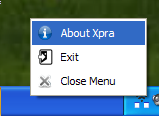
debug logging. The shadow server also displays a system-tray
menu while it is running and changes its icon when a client connects.
For general diagnostic steps, see Debugging Xpra.
Known platform-specific work is tracked in these issues:
- #899 generic shadow improvements
- #389 Windows shadow server improvements
- #558 NVENC support for shadowing on Windows
- #390 damage events for the POSIX shadow server
- #391 macOS shadow server improvements
- #530 resize shadow windows on the client
- #972 fullscreen mode in the client
- #1099 keyboard layout on Windows
- #1150 named pipes for Windows
- #1321 scrolling with the macOS shadow screen
- #1322 resizing the macOS shadow screen